 Media Librarian
Docs
Getting started
Media Librarian works as soon as you activate it: you get a Media Categories taxonomy, a filter for it in the media library, and a categories box in each file's details.
Put files into categories
- Go to Media → Media Categories and add a few categories. Pick a parent to nest one inside another.
- Go to Media → Library and click a file.
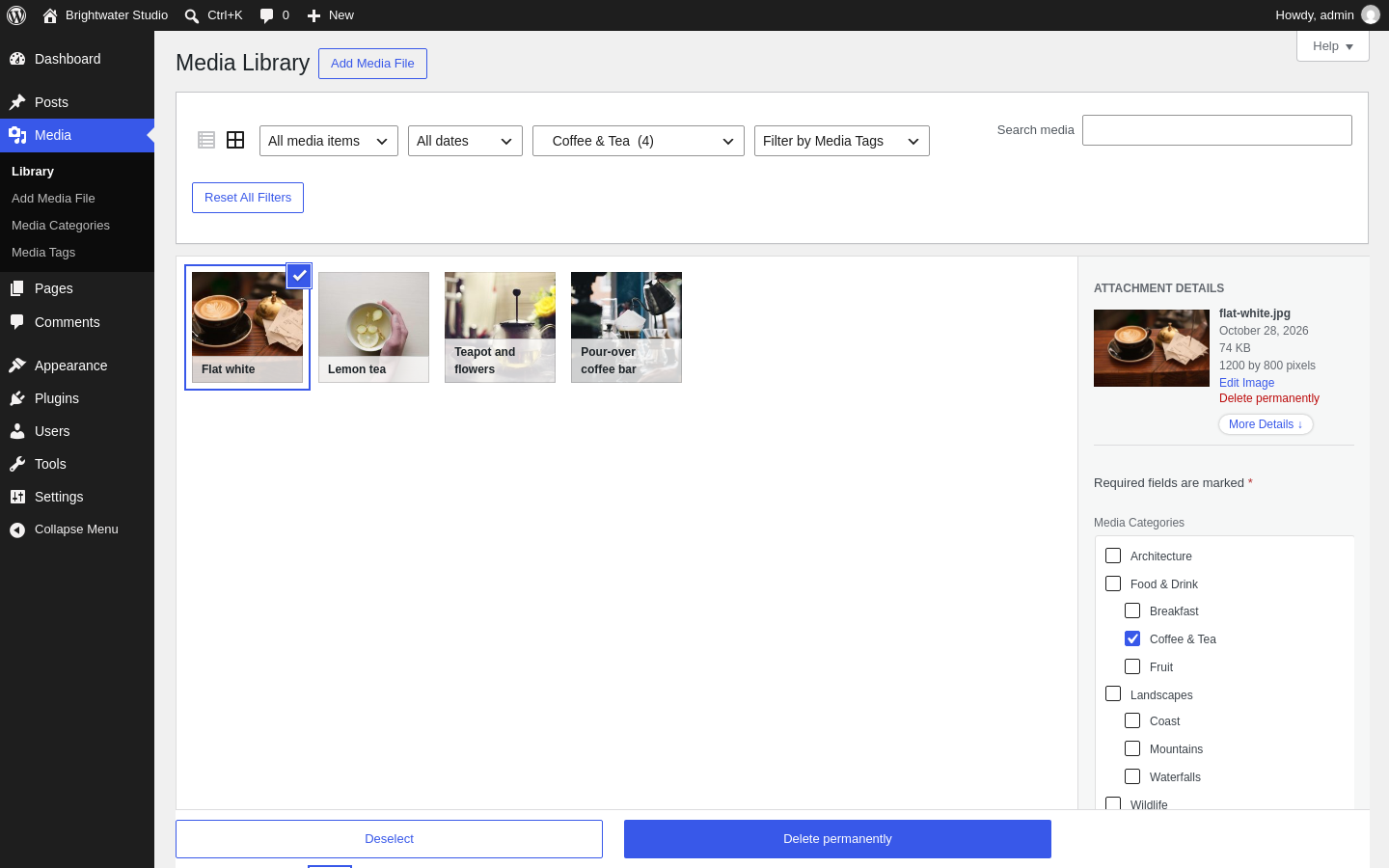
- Tick its categories in the details panel. They save straight away.
Filter the library
Use the category menu in the media library toolbar. Each category shows how many files it holds, counting the files in its child categories. Click Reset All Filters to see everything again.
The same filters appear in the list view (Media → Library, list icon) and in the media popup that blocks open when you pick an image.
Add tags or your own taxonomies
Go to Settings → Media Taxonomies and click Add New Taxonomy. Untick Hierarchical for tags, which you type rather than tick. You can also reuse your blog's own categories and tags for media under Non-Media Taxonomies.
Click Edit next to any taxonomy to choose where it appears:
- Column for List View and Filter for List View
- Filter for Grid View / Media Popup
- Edit in Media Popup: shows its checkboxes in the popup's sidebar, so you can categorise files while adding them to a post
- Show in REST: for the block editor's data and headless sites
Other settings
- Settings → Media Library: which filters show, whether category filters include child categories, the order of files (including drag-and-drop custom order and natural sort), grid captions and infinite scrolling, and gallery shortcodes by category.
- Settings → MIME Types: which file types can be uploaded, and your own types.
- Settings → Media Librarian: export, import and restore settings, and remove all of the plugin's data.
Need help?
Ask in the support forum. Please say which WordPress version and theme you use.